
How to Customize Page Tab Images on Facebook


Did you know that you can easily customize the image of your tabs on Facebook? Yes! Now you can get rid of those ugly icons that are cramping your page's style and add something visually appealing and consistent with your company/brand. Not only does this feature improve the look and feel of your Facebook page, it's another opportunity to spread your marketing message. Here's a step-by-step guide on how to customize the page tab images on Facebook.
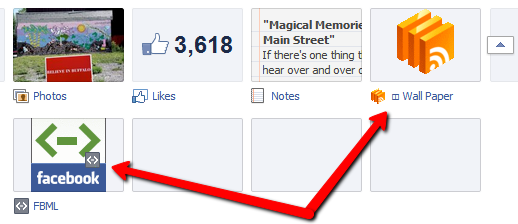 First, navigate to the page that you want to edit. Under the cover photo and to the right of the tabs area, you'll see a little drop down menu.
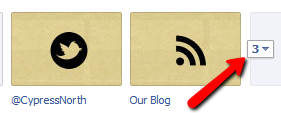
Click the drop down menu and then select the pencil icon of the tab you want to change the image for. Click "Edit Settings".
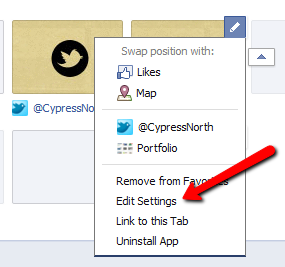
This box will pop up:
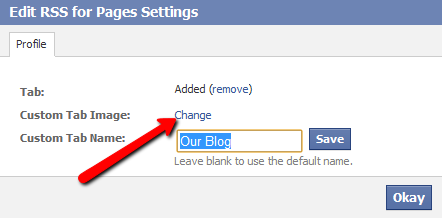
Click "Change". You can also adjust the name of your tab if you wish.
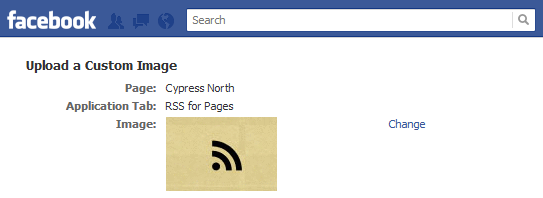
After you click "Change", you will be directed to the screen above. Note that it tells you the PAGE you are editing the tab for, and which application. In this case we are editing the Cypress North Facebook page and the application to our blog's RSS feed.
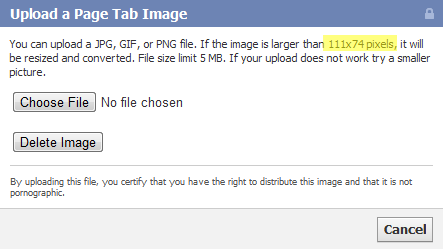
Click "Change" again. You will now be prompted to upload a Page Tab Image. Note: The image cannot be larger than 111 x 74 pixels. If it is, then it will be re-sized and converted. Your best bet is to create your image to the exact specifications.
Upload your image and say hello to your new Page Tab image!
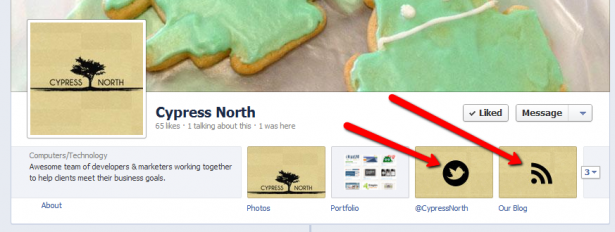
If you have an email newsletter, you could create a custom page tab image like this:
Here's an example of Facebook's Facebook page:
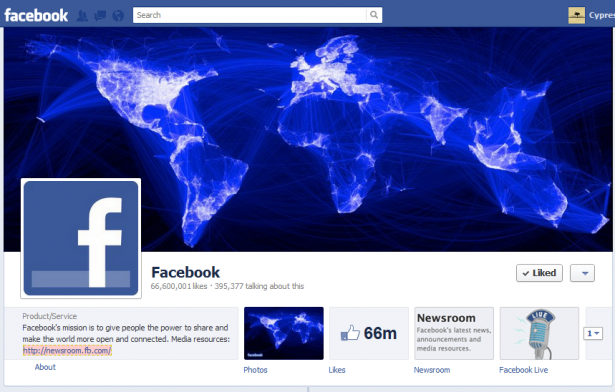
And that's how you add a custom image to your Facebook tab. Now go out and do it!
If this post helped, like our Facebook page or follow us on Twitter so you can keep getting helpful tips & tricks like this!
24 Comments
Leave a Reply
Related Resources

13 Digital Marketing Predictions for 2025
Top Industry Voices Share Their 2025 Digital Marketing Trend Predictions As digital marketers, we know a new year brings new goals, new opportunities for growth, and new challenges. But a new year also brings plenty of change. Whether it’s advancements […]

B2B Marketing With the Rise of Gen Z: Navigating the Digital Native Workforce
Explore the unique challenges & opportunities of marketing to Gen Z in the B2B space. Discover how these digital natives are reshaping the professional world & what it means for marketing strategies. Stay ahead in the era of Gen Z with expert insights.
5 Steps to Conduct a Successful Social Media Audit
Are your social media platforms in need of a refresh? Follow these 5 steps to audit and optimize your platforms for success.
5 Tips for Getting the Most Out of the LinkedIn Ads Campaign Manager
Read these 5 ways you can leverage the insights in the LinkedIn Ads Campaign Manager to manage and optimize your LinkedIn ads.
23 Of The Best Resources For Starting A Digital Marketing Career
The best social media communities, podcasts, newsletters, and certifications for new digital marketers I didn’t know anything about digital marketing when I started as an intern at Cypress North earlier this year. Acronyms like SEO, CPA, and ROAS meant nothing […]
Pinterest as a Search Engine: An Advertisers’ Guide to Keyword Targeting in Pinterest Ads
Pinterest – the land of dream wedding dresses, instant pot recipes, room inspo, and… SERPs? Pinterest is so much more than a social media platform. Yes, the platform allows users to like, share, and discover new content based on their […]
How to Transform Your Static Images into Animated Video Ads With Facebook’s Video Creation Kit
As the digital space continues to evolve, video has become more dominant than ever before. Attention spans are shorter, people expect to be entertained, and messaging must be communicated in a fascinating way. For businesses with limited time and budget, […]
Best Digital Marketing Podcasts
Whether you're focused on SEO, PPC, social media, content, or affiliate marketing, podcasts are a great way to stay competitive in the dynamic digital marketing landscape. Finding a reliable program to consume from your car, desk, or treadmill allows you […]

Precisely Target Your Ideal B2B LinkedIn Audience With One Powerful Tool
LinkedIn is an incredible tool for B2B marketers due to its unique targeting; namely professional information like job titles and company industries. I’m sure you’ve spent precious time crafting your audiences, but targeting is just the beginning. Arguably, audience exclusions […]
Facebook Ads Budget Optimization: Everything You Need To Know
Facebook has major news for advertisers. Come September 2019, account managers will no longer be able to set budgets at the Ad Set level in Facebook Ads. Instead, Facebook's Campaign Budget Optimization will become the default setting for all campaigns, […]
Deep Dive: Reddit Ads Update
With this Reddit Ads update, Reddit expressed interest in offering more options for marketers but did this update miss the mark? We're diving deep into what the update includes, how to navigate it, and how you should adjust your Reddit […]
Digital Marketing in 2019: What to Watch For
The Pros Rampant Responsive One of the biggest boons for advertisers in 2018 was the ability to optimize campaigns by moving away from standard banner sizes and utilizing responsive display ad formats. The proliferation of flexible ads such as Facebook […]
How To (Properly) Share Access to Pages & Ad Accounts in Facebook Business Manager
Facebook's Business Manager has been a boon for advertisers and agencies across the world. With simple sharing, no transferring of ownership, easy transition from client to client and easy employee access, there's not a lot to complain about. The only […]
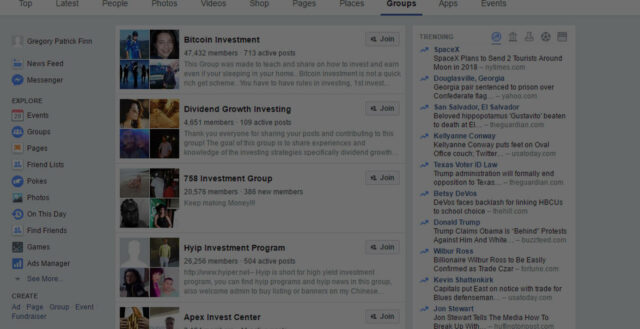
Why You Shouldn’t Use Facebook Groups To Build a Community
Never have Facebook Groups been more prevalent than they are today. It seems like every podcast you listen to and site you visit is pushing fans, listeners, and visitors to follow along in a Facebook Group. It’s true, Facebook Groups […]
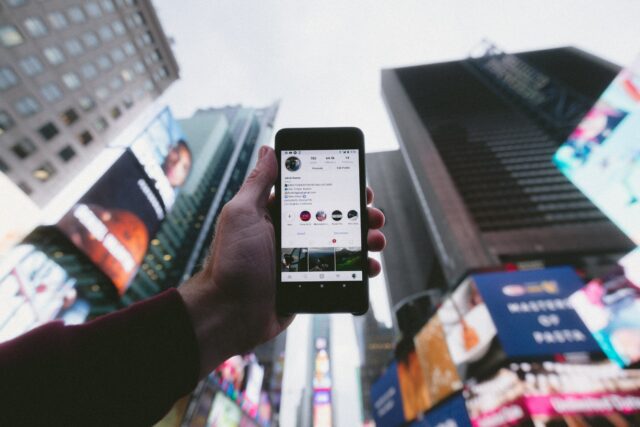
Instagram for Business: Pros and Cons of Instagram's Changing Platform
The Marriage of Facebook and Instagram Instagram has had quite the last 4 years. When Facebook originally acquired Instagram for $1 billion in 2012, not much initially changed for the platform. Nonetheless, it was clear that with Facebook's back-to-back purchase of […]

What to Do If You Accidentally Claimed a Facebook Page/Ad Account Instead of Requesting Access
Facebook Business Manager is a fantastic tool that makes managing clients a dream. Companies can quickly give or terminate access to employees in a single location. In order to perform this task however, access must be requested to an account. […]

13 Tips For Getting The Most From Facebook Live Posts
In a world of decimated brand reach, a new tool has risen that brings Facebook exposure back. Facebook Live has arrived and has been a boon for marketers looking to attract eyeballs to brand posts. While this new post type […]

Download or Disregard - Wishbone: A Guide to the "Hot" New App We Really Wish Would Go Away
App name: Wishbone Wishbones. Those slimy crescent shaped bones that you and your siblings would fight over to break in half and see whose side was larger (and more importantly, whose wish would come true). That is loosely the thinking behind […]

Interview: Tips & Tricks On How To Properly Market On Reddit
Most marketers believe that Reddit will never work for them. That's simply not true. I was recently asked some questions by David Kirkpatrick of MarketingSherpa alongside the great Brent Csutoras of Kairay Media. The interview covers the following Reddit-related topics: […]
Facebook's Pay-to-Play Model: Why You Should Reassess Your 2014 Organic Social Marketing Plan
The goal of any type of marketing is to sell product. Period. That includes marketing with social media. Whether through awareness, buzz, brand building, or general goodwill, we use social media to promote ourselves and our product. This is an […]
I have tried to customize my facebook tabs. But, when I click on 'Edit Settings' the box that comes up only has the option to 'remove' the tab not 'change' it. Do you know why this is? Many thanks
Hi Tineke, I haven't run into that issue yet. Without actually seeing which tab you're trying to edit, I don't know how much help I can be. I checked on our Cypress North FB page and was able to change any of the custom tabs that we added to the page. The Map box or the "Likes" box; however, are unable to be edited. Hope that helps.
Tineke, what app did you install on the Facebook Page? Some have restrictions - such as changing the landing page tab image.
I am experiencing the same problem as Tiffany. It does not give me an option. I'm just trying to change the Events tab and the Videos tab for now.
Hi Carolyn, unfortunately, not all apps (including the Events and Videos) allow you to customize the thumbnail image.
[...] Tab photo: 111 x 74 px (see our tutorial on how to customize Facebook tab images) [...]
Hello Tiffany,
Every time I try to upload a custom image for a tab I get the following error "The image you are trying to upload are invalid. It may be corrupt, of wrong file format or the wrong size.". My image is not bigger than 111 x 74, but the size is 4 kb in a PNG type. Can you please let me know how to create my own custom image in the right type and correct size? If so, what program do you recommend? I created my image using Windows Paint. Thanks!
Hi Sweet,
A PNG file should work fine. Have you tried saving your image in different file formats (like jpg) and uploading to FB?
I use Photoshop for all of my image editing needs.
Sweet Perez,
I'm having the same issue. I have changed the size and format several times to try to correct this "issue". I'm starting to think it is a bug in Facebook's coding.
Hi Garrett,
I just swapped out tabs yesterday on another page I manage, so it's working for me just fine. I created tabs to the 111x74 image size, then saved as PNG files, and swapped them out. Once you upload the image, there isn't a button that asks you to save, you just have to refresh the page to see the change.
Facebook is a little buggy at times. Try clearing your cache and uploading the file again.
Garrett, I found this blog post looking for a solution to the same annoyance you seemed to be having. I had a photo that I was trying to resize to the the right dimensions using Picasa. It's a square image, so I made it 74X74 or below, and continued to get the same error you received. What finally got it to work for me was using the "resize" feature in Paint, and resizing to 111 X 74. Yes, it was skewed some, but not enough for me not to be happy. Additionally, to reduce skewing, I resized the square to 111, then cropped down length to 74. I could see what the length was simply by hovering my mouse over the image in the explorer window just prior to uploading it to the tab (you know, when selecting the image to upload right before the notorious error message?) Looks great!
Hope that helps someone who finds this blog post as I did. Thanks Tiffany! 🙂
KC, this may help you (and everyone else on here). It's an infographic featuring all of the sizes for posting content on a Facebook Page.
What I find works best is to size everything to these sizes. Facebook has a way of resizing images and they don't always turn out how you think they will.
Enjoy!
https://www.facebook.com/askck/app_543337009015686
I want to customise the name and tab image on my notes tab and my photos tab - but under the edit option all it gives me is to remove the tab. Is it possible to edit these tabs or just ones that you install separately?
Hi Frances, you are correct. You aren't able to change the name or image of the notes or photos tab, only the tabs of apps you install.
Hi Tiffany, tried several times to change the image on my page
http://www.facebook,com/captain.story it just wont allow me to change the image despite the right size. It says some developers do not allow the change. I self created this and have heroku have the hosting ... which I believe is free. Any thoughts. cheers
What is the name of the app that you are trying to customize?
Hi Tiffany ... got it. Best to use picresize.com to get the right sizes. Other photoediting software doesn't seem to work. Thanks for getting back 🙂
Pradeep,
That is correct. Not all images can be changed for some of the apps you have installed. It is up to the developer to allow this.
If you can send me a message through my Facebook Page - http://www.facebook.com/askck, I'm happy to take a look at it for you.
-
Christian
Hi Tiffany-
I have a Facebook page that I would like to edit and customize. I can provide all the artwork but do you or someone you know redesign Facebook pages?
Thank you,
Sarah
Hi Sarah,
What do you mean by "redesign" Facebook pages -- can you be more specific?
http://www.facebook.com/theworldofpocketopia I would like the tabs to be customized but I don't know how to do it. If I can hire someone would be great!
Sarah,
Let me know if you need help customizing your Facebook Page. The best way to reach me is through my Facebook Page.
http://www.facebook.com/askck
Happy to work with you.
-
Christian
My page doesn't even have the images, it only has the words listed across the top. How do I change that???