
Setting up URL Rewrites for WordPress under IIS on a Windows Server


A common problem when running WordPress under Windows and IIS is how to handle URL Rewrites. URL Rewrites are usually used with WordPress to format the permalink structure of post URL's in a nice way, and to remove the need for having index.php in every URL. Apache servers handle this with ease using the widely included mod_rewrite plugin, but unless you're running IIS 7+ on Windows, you have no such capability without some 3rd party help.
If you're not already up and running with Rewrites on your Windows Server, download and install ISAPI_Rewite Lite (free), then follow the installation instructions to get going.
Note: If you're running IIS 7 or greater see the IIS Module and instructions.
The remainder of this post will speak to IIS6.
Now that you have the ISAPI Rewrite module installed, you can use the Helicon Config Editor to make changes to your .htaccess file although you probably won't need to just yet. The first thing you'll want to do is to log into your WordPress install and enable the permalink structure you require. This will create an initial, and presumably working, .htaccess file at the root of your install.
- Log in to the Admin section of your WordPress install by going to http://www.yourdomain/wp-admin
- Click on Settings -> Permalinks
- Choose your link structure or enter a custom one
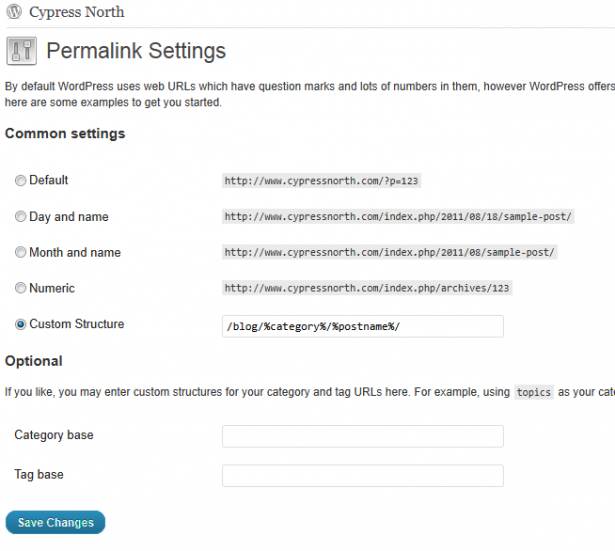
Then click Save to create the rewrite rule. If you get a permission error, you'll need to grant read/write/execute permission to the account you have PHP running under (i.e. Network Service). Once you are successful, test out your site by navigating to the blog home page and then click on a single post. If it loads and the URL looks like your desired structure, you're in business.
This process should have resulted in a .htaccess file that looks similar to the following
# BEGIN WordPress
<IfModule mod_rewrite.c>
RewriteEngine On
RewriteBase /
RewriteRule ^index.php$ - [L]
RewriteCond %{REQUEST_FILENAME} !-f
RewriteCond %{REQUEST_FILENAME} !-d
RewriteRule . /index.php [L]
</IfModule>
# END WordPress
If you run into an issue where your having trouble reaching the wp-admin page after setting up your Rewrite rules, have a look at Correcting wp-admin 404 error for wordpress under IIS.
Meet the Author

Matthew Mombrea
Matt is our Chief Technology Officer and one of the founders of our agency. He started Cypress North in 2010 with Greg Finn, and now leads our Buffalo office. As the head of our development team, Matt oversees all of our technical strategy and software and systems design efforts.
With more than 19 years of software engineering experience, Matt has the knowledge and expertise to help our clients find solutions that will solve their problems and help them reach their goals. He is dedicated to doing things the right way and finding the right custom solution for each client, all while accounting for long-term maintainability and technical debt.
Matt is a Buffalo native and graduated from St. Bonaventure University, where he studied computer science.
When he’s not at work, Matt enjoys spending time with his kids and his dog. He also likes to golf, snowboard, and roast coffee.